Evaluating the Monitor Canva Mockup Template for Professional Visual Presentations
Presenting digital work in a realistic context helps audiences understand scale, context, and finish. Among the many presentation assets available to creators today, the Monitor Canva Mockup Template has gained attention as a tool that bridges the gap between raw screen capture and polished showcase. Whether you are pitching a website design, demonstrating a software interface, or sharing a digital portfolio, this template aims to provide a clean and professional frame for your content. This article examines the template's design, practical strengths, limitations, and suitability for different users.
Understanding the Monitor Canva Mockup Template
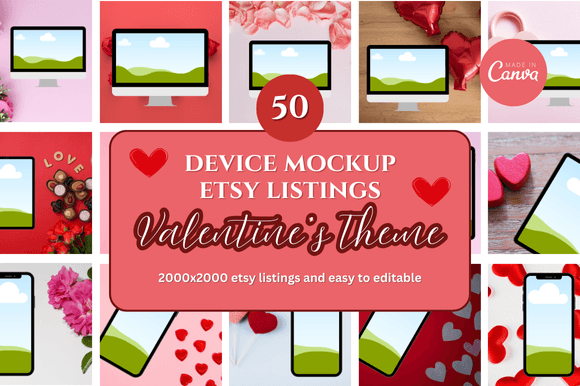
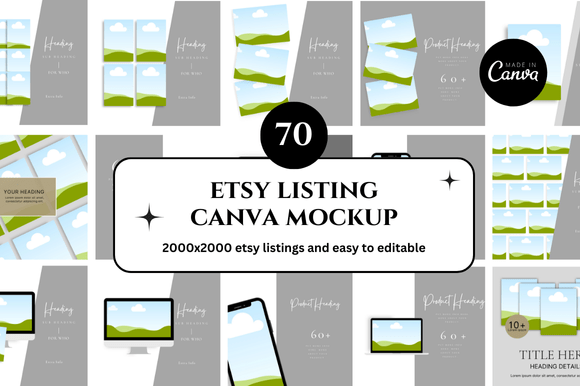
A mockup template places your digital design or screenshot into a realistic device frame. The Monitor Canva Mockup Template specifically uses a monitor display—typically a modern flat-screen or laptop-style frame—to present your work as though it were being viewed on an actual screen. Unlike generic mockups that require Photoshop or dedicated design software, this template is built entirely within Canva, the browser-based and app-based graphic design platform. This means anyone with a Canva account—free or Pro—can access and customize the template without needing advanced technical skills or separate applications.
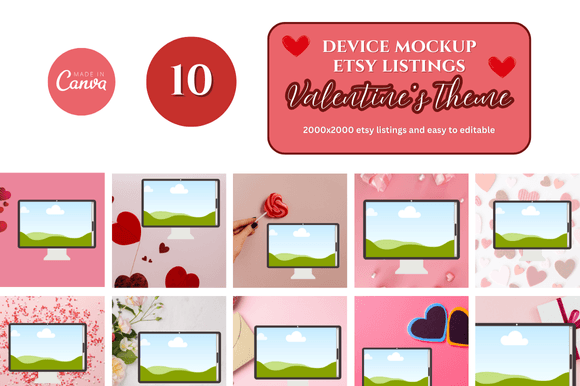
The template usually includes editable layers for the screen area, background, shadows, and sometimes additional props like a desk surface or plant. You replace the placeholder image on the monitor screen with your own screenshot, video still, or design. The result is a presentation-ready image that instantly communicates a digital-first context.
Key Characteristics and Purpose
What sets the Monitor Canva Mockup Template apart from a simple screenshot is the visual context it provides. A raw screenshot floating on a white page can feel flat and unanchored. Placing that same screenshot inside a monitor frame gives it weight, depth, and a sense of environment. The template typically includes subtle lighting effects, screen reflections, and shadow gradients that make the final image look more dimensional and polished.
The purpose of this template is not to deceive or to add unnecessary decoration. Rather, it serves a functional goal: helping viewers immediately recognize that they are looking at a digital interface or on-screen content. For marketers showing a landing page, educators demonstrating an app workflow, or freelancers presenting a web design concept, this contextual cue speeds up comprehension and makes the work feel more real.
The template also standardizes the presentation format. If you have multiple screenshots to show—for example, different pages of a website or various states of an application—using the same monitor mockup creates visual consistency across your set of images. This consistency matters for professional decks, social media carousels, and portfolio galleries.
Usability and Low Learning Curve
Because the template operates within Canva's editing environment, anyone comfortable with basic drag-and-drop design can use it. There is no need to learn layer masks, clipping paths, or perspective transformations. You simply click the screen area, delete the placeholder, and upload your own image. The template automatically scales and positions your content within the frame. This simplicity makes it accessible to entrepreneurs, bloggers, educators, and small business owners who do not have dedicated design support.
Speed and Efficiency
When you need a series of mockups quickly—for a pitch deck due tomorrow or a social media campaign launching this week—the Monitor Canva Mockup Template saves significant time. Instead of creating each mockup from scratch in Photoshop or searching for device frames on stock sites, you open the template, swap in your images, and export. For a set of five to ten screenshots, the entire process can take under thirty minutes.
Customization Within Canva's Ecosystem
You can adjust background colors, add text overlays, reposition the monitor within the canvas, and apply Canva's filters or effects to the entire composition. This flexibility allows you to match the mockup to your brand colors or presentation theme without leaving the platform. For users who prefer a consistent aesthetic across all their visual assets, this integration is valuable.
Cost-Effective Solution
Many Monitor Canva Mockup Templates are available for free, while premium versions offering additional angles or props cost a modest amount within Canva's marketplace. Compared to buying individual mockup files from stock photography sites or subscribing to specialized mockup tools, this template offers a low-cost entry point. For freelancers, hobbyists, and small business owners operating on tight budgets, the affordability is a clear advantage.
Real-World Performance and Practical Value
In practice, the Monitor Canva Mockup Template performs reliably for flat, rectangular screenshots that match standard monitor aspect ratios (16:9, 16:10, or similar). If your content fits within these proportions, the template will produce a clean, professional result with minimal adjustment needed. The shadows and reflections built into the template are generally well-calibrated for typical lighting conditions, giving a natural look that does not scream "template."
However, performance depends partly on the quality of the source image. A low-resolution screenshot will look pixelated inside the mockup, and the monitor frame will not fix that. Similarly, images with unusual cropping or non-standard aspect ratios may require manual tweaking—either by cropping your source image first or adjusting the template's screen layer boundaries. For users who need very precise alignment or perspective matching, the template's preset frame may feel limiting.
The template also handles video placeholders in some versions. If you want to show a video interface or an animated prototype, you can embed a video file into the screen area (Canva Pro feature). This capability is useful for UI/UX designers demonstrating interactive flows or educators showing a software tutorial preview.
Freelancers and Independent Creators
If you are a web designer, graphic designer, or digital artist building a portfolio, the Monitor Canva Mockup Template helps you present your work in a way that feels finished and client-ready. Instead of linking to live sites that may change, you can maintain controlled mockup images that highlight your design choices. The template also works well for creating before-and-after comparisons or showcasing responsive design variants.
Marketers and Content Creators
Social media managers, bloggers, and content marketers often need to show website features, email newsletter previews, or dashboard screenshots. Using the mockup template elevates these images beyond simple screen captures, making them more engaging for LinkedIn, Instagram, or Pinterest. The consistent format also helps build recognizable visual branding across posts.
Educators and Trainers
When creating course slides, handouts, or tutorial graphics, placing screenshots inside a monitor frame helps students immediately understand that the content relates to a digital tool or platform. This contextual hint reduces confusion and supports learning, especially for adult learners who may not be deeply familiar with software interfaces.
Small Business Owners and Entrepreneurs
For startup founders or small business operators who handle their own marketing materials, the template offers a straightforward way to produce professional-looking product shots of web-based services, apps, or software demos. It removes the need to hire a designer for every presentation or pitch deck update.
Limitations and Considerations
No tool is perfect, and the Monitor Canva Mockup Template has practical constraints. The most important limitation is the fixed perspective. The monitor is usually shown from a straight-on angle or a very slight tilt. If you need a dramatic three-quarter view or a custom perspective that matches other visuals in your deck, the template will not accommodate that without significant manual effort in an external editor.
Another limitation is the template's style. The monitor frame design, desk surface, and background props follow a particular aesthetic that may not suit all brands or industries. A sleek, minimal monitor works well for modern tech presentations, but a creative agency wanting a more artistic or abstract look might find the template too generic. Some templates allow for background color changes but not for swapping the monitor body style itself.
Additionally, the template relies on Canva's cloud-based editor. While this is convenient for quick edits, it means you need an internet connection to make changes. Users who work offline or prefer local file editing may find this dependency restrictive.
Finally, resolution limitations apply. Canva exports at specific resolutions depending on your account type. Free accounts may have lower maximum output resolution, which could affect print use or high-resolution display presentations. For digital use on screens, standard export quality is generally sufficient.
Practical Recommendations for Getting the Most Out of the Template
To maximize the value of the Monitor Canva Mockup Template, start with high-quality source images. Export your screenshots at 2x or retina resolution if possible, so they remain sharp inside the mockup frame. Keep your aspect ratio close to 16:9 or 16:10 to avoid unnecessary cropping or distortion.
Use consistent lighting and color temperature across all your mockup images within a single project. If your template has a warm desk and background, ensure your screenshot tones do not clash dramatically with the scene. Small adjustments to brightness or contrast within Canva can help the composition feel cohesive.
Consider the background. Many templates include a default desk or wall background. You can replace this with a solid color, a gradient, or your own background image. For professional presentations, a minimalist background often works better than a busy one, as it keeps attention on the screen content.
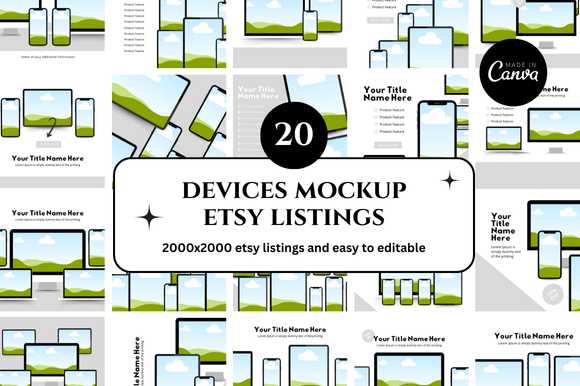
If you need multiple angles for a single design (for example, both a straight-on monitor view and a laptop view), combine the Monitor Canva Mockup Template with other device mockups from the same creator or collection. Mixing templates from different sources can result in inconsistent lighting and shadows, which undermines the polished effect.
For users preparing printed materials, check the export resolution before committing to the template. If your final output is for web or presentation screens, the standard export is fine. For print brochures or posters, consider upgrading to Canva Pro for higher resolution exports or use the template as a layout guide and recreate the mockup in a print-ready tool.
Who May Not Benefit as Much
The Monitor Canva Mockup Template is less ideal for users who require photo-realistic mockups with customized hardware, such as specific monitor bezels, unusual screen sizes, or bespoke lighting setups. Professional UI/UX agencies that need to present in high-fidelity contexts may prefer dedicated mockup generators or 3D rendering tools that offer greater realism and perspective control.
Similarly, users who need to present non-rectangular interfaces—such as smartwatch faces, circular dashboards, or irregular screen shapes—will find the standard rectangular monitor frame limiting. In those cases, a different device mockup or a custom illustration would be more appropriate.
If your workflow relies heavily on offline tools like the Adobe Creative Suite, and you do not use Canva for other tasks, the template may feel like an extra tool to learn rather than a convenience. However, for users already working within Canva, the integration is seamless.
Ultimately, the Monitor Canva Mockup Template is a practical, accessible solution for presenting on-screen work in a professional context. It is not a replacement for high-end mockup software, but it does not need to be. Its value lies in speed, simplicity, and consistency for everyday presentation needs. For freelancers, marketers, educators, and small business owners who want to elevate their screenshots without adding complexity to their workflow, this template delivers solid results in minutes. Understanding its strengths and limitations allows you to decide whether it fits your specific projects and audience expectations.